GOT IMAGE 2 vs Bing Image Creator
No Microsoft Account, No Daily Boost Cap
Bing Image Creator is genuinely good and genuinely free — this page says so before it says anything else. Then it shows you the three places the two differ, with six renders as evidence rather than adjectives.
Run the Same Prompt Here — Free, No Account
These are the six presets that produced the gallery below. Pick one, describe your own version, and compare the result against whatever Bing Image Creator gives you for the same brief.
GOT IMAGE 2 — Free Bing Image Creator Alternative
Choose one of the six presets used for the gallery on this page, then describe your own subject, wording and colours in the box. No Microsoft account, no sign-in and no daily fast-creation cap — just type and generate.
Every preset here renders at 1:1 square, the ratio all six gallery images were generated at. For other shapes, start from the home page generator, which adds a ratio picker, or trim afterwards with the AI image cropper. To change something in a photograph you already have, use the AI image editor rather than describing the change in a prompt — the gallery below explains why.
GOT IMAGE 2 vs Bing Image Creator, Row by Row
Everything in the Bing Image Creator column comes from Microsoft’s own Image Creator help page and is accurate at the time of writing. These things change; check before you rely on them.
| GOT IMAGE 2 | Bing Image Creator | |
|---|---|---|
Account required | None — the generator on this page runs signed out | A Microsoft account, per Microsoft’s own help page |
Cost to start | Free tier, no card; paid plans from $2.99 | Genuinely free with a Microsoft account; Copilot Pro for more capacity |
Model | GPT Image 2 | DALL-E 3 or MAI-Image-2.5-Flash, selectable per creation |
Fast generations | No fast/slow split and no per-day cliff | 15 free fast creations a day, then standard speed or Microsoft Rewards points |
Editing an uploaded image | Yes — GPT Image 2 handles generating and editing alike | Yes, but editing is routed to GPT-4o and the model picker is unavailable |
Aspect ratios | Presets here are 1:1; the home generator adds 16:9, 9:16, 4:3 and 3:2 | 1:1, 7:4, 4:7, 3:2 and 2:3 |
Watermark | None, with nothing to switch off | Optional — a setting you can turn on if you want one |
Text inside the image | 63 correct characters on the poster above, first try | DALL-E 3 is strong at text; run your own headline through both |
Stay With Bing Image Creator If
- You already live in Microsoft’s world — Edge, Copilot, Outlook, Windows — and the sign-in costs you nothing because you are already signed in.
- You make a few images a week. Fifteen free fast creations a day is generous and you will never see the ceiling.
- You want to pick your model per creation. Choosing between DALL-E 3 and MAI-Image-2.5-Flash is a genuine feature and not one this page matches.
- You collect Microsoft Rewards points anyway, in which case topping your fast creations back up costs you nothing real.
Use GOT IMAGE 2 If
- You have no Microsoft account, do not want one, or are on a machine where you cannot sign into a personal account.
- You iterate hard. Testing six versions of a headline in one sitting is where a daily fast-creation allowance starts to bite.
- You want the same model generating and editing, rather than having an upload handed to a different one partway through.
- You need to hand someone a link that just works, with no onboarding step between them and a finished image.
Six Renders, Warts and All
Straight out of the presets above at the same 1:1 ratio — including the four where something went wrong
Sixty-Three Characters, Every One of Them Right
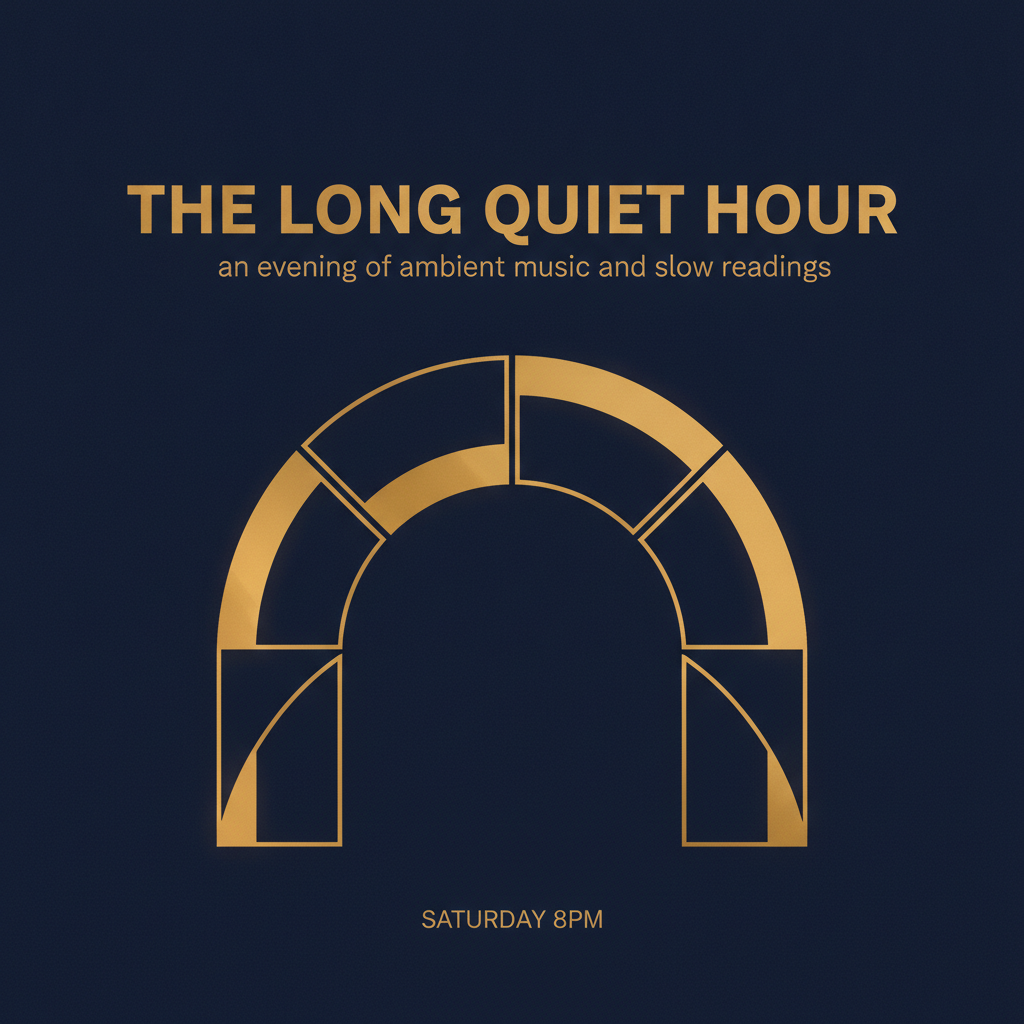
This is the single most useful image on the page, because in-image text is where AI generators historically fall over. The prompt asked for a headline reading THE LONG QUIET HOUR, a subheading reading an evening of ambient music and slow readings, and a footer reading SATURDAY 8PM. All three came back exactly as written, on the right lines, correctly spelled, evenly tracked and set well inside the margins. Crop into the headline at full resolution and the letterforms hold up: no doubled strokes, no invented accents, no drifting baseline. Sixty-three characters across two typographic weights is a genuinely hard ask, and it landed first try.
It Re-Renders. It Does Not Adjust.
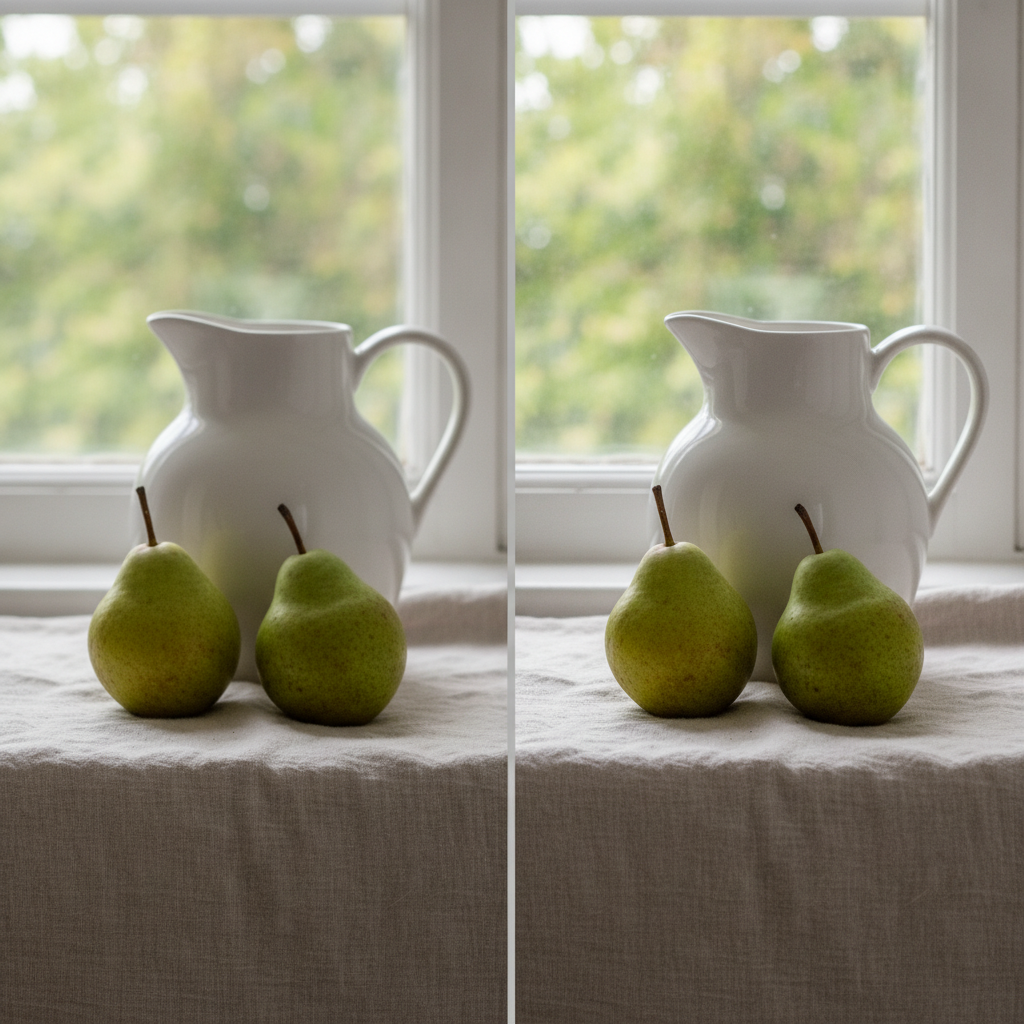
The prompt was explicit: the same still life on both sides of the divider, pixel identical in composition, object placement and lighting, with the only difference being that the right half is slightly crisper. The right half is indeed crisper. It is also a different jug. Look at the two halves side by side and the jug on the right is narrower with a sharper spout, the pears have swapped shape and their stems lean in different directions, the window rail sits at a different height, and the linen falls in different folds. Nothing here was asked to change. This is the most important thing to understand about any generator, this one and Bing Image Creator alike: describing a small change produces a whole new picture, not an adjustment to the old one.
The Idea Landed. The Photograph Changed Anyway.
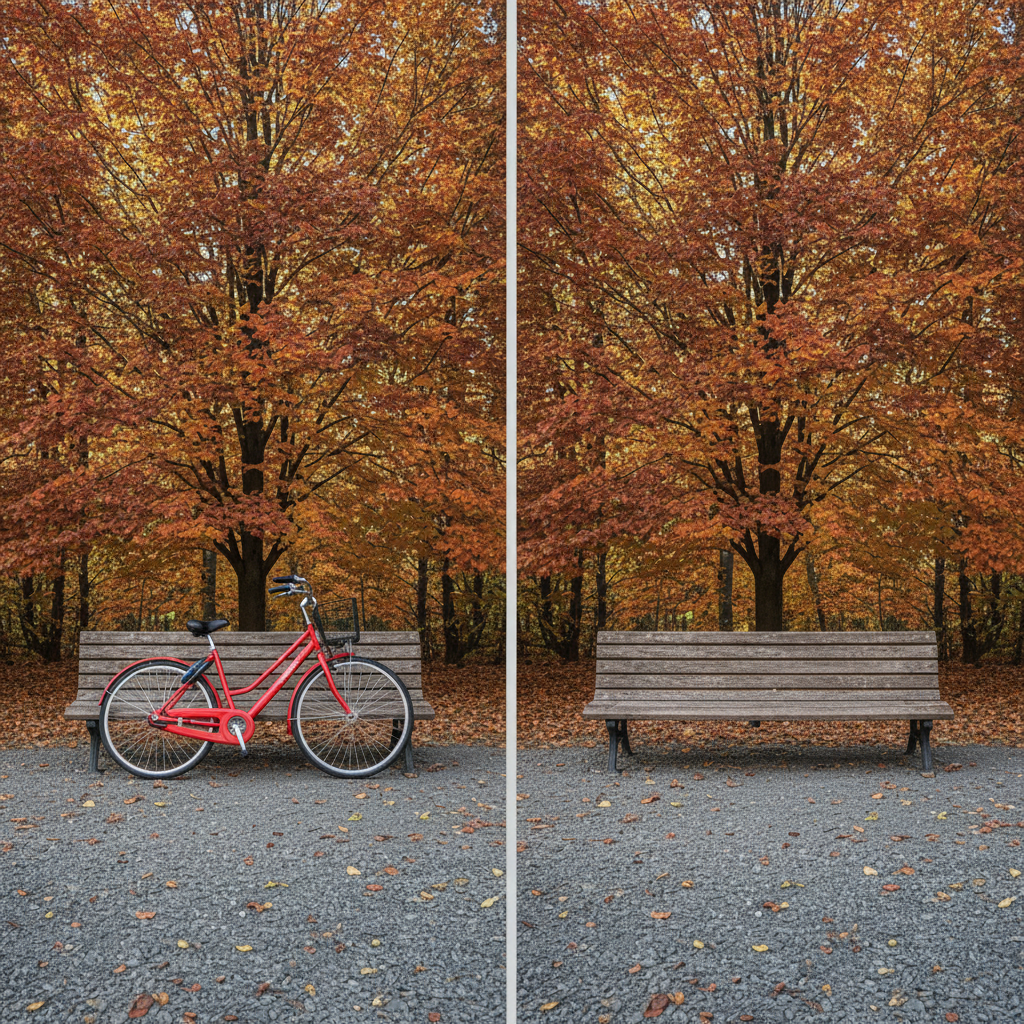
Same experiment, harder subject: a park bench with a red bicycle against it, then the identical photograph with the bicycle gone. The concept is delivered cleanly, and the right half is convincing on its own terms — the gravel where the bicycle stood is undisturbed and the leaf scatter looks natural rather than smeared. But it is a different bench. The slats, the cast iron legs and the tree canopy behind all differ between the halves, and the bicycle ended up at the left end rather than the right end as asked. If you want the bicycle taken out of your own photograph rather than out of an invented one, that is a job for the image editor, not for a text prompt.
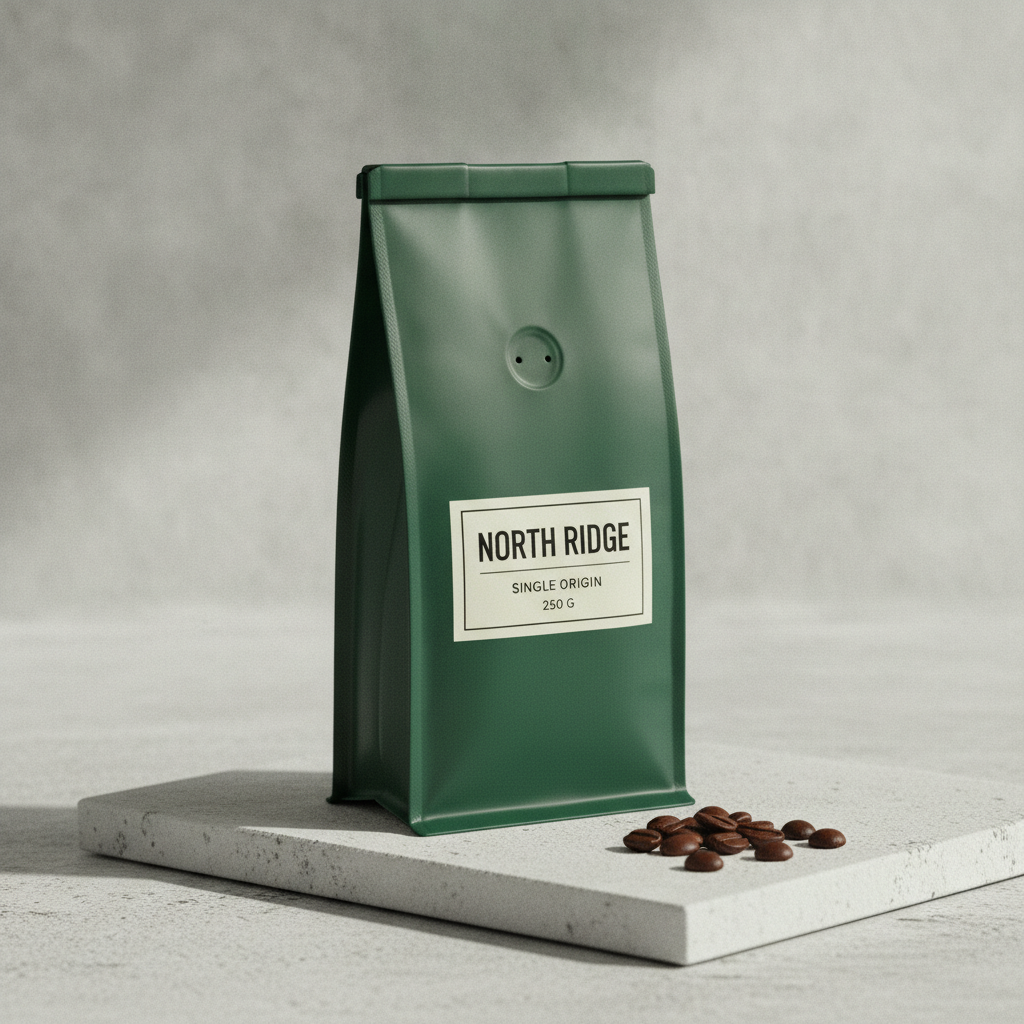
Small Text, Still Sharp — and One Instruction Quietly Dropped
Three lines of small label text on a product shot: NORTH RIDGE, SINGLE ORIGIN, 250 G. Zoom in four times and all three are correctly spelled and cleanly set, which is the harder version of the poster test because the type is a fraction of the frame. Two things did slip. The prompt asked for soft directional light from the left and the shadow falls left, meaning the light is coming from the right. And the thin rule under NORTH RIDGE is not parallel to the label border, sloping gently down to the right. Neither is visible at a glance, which is exactly the problem: check the details you care about before you use a render commercially.
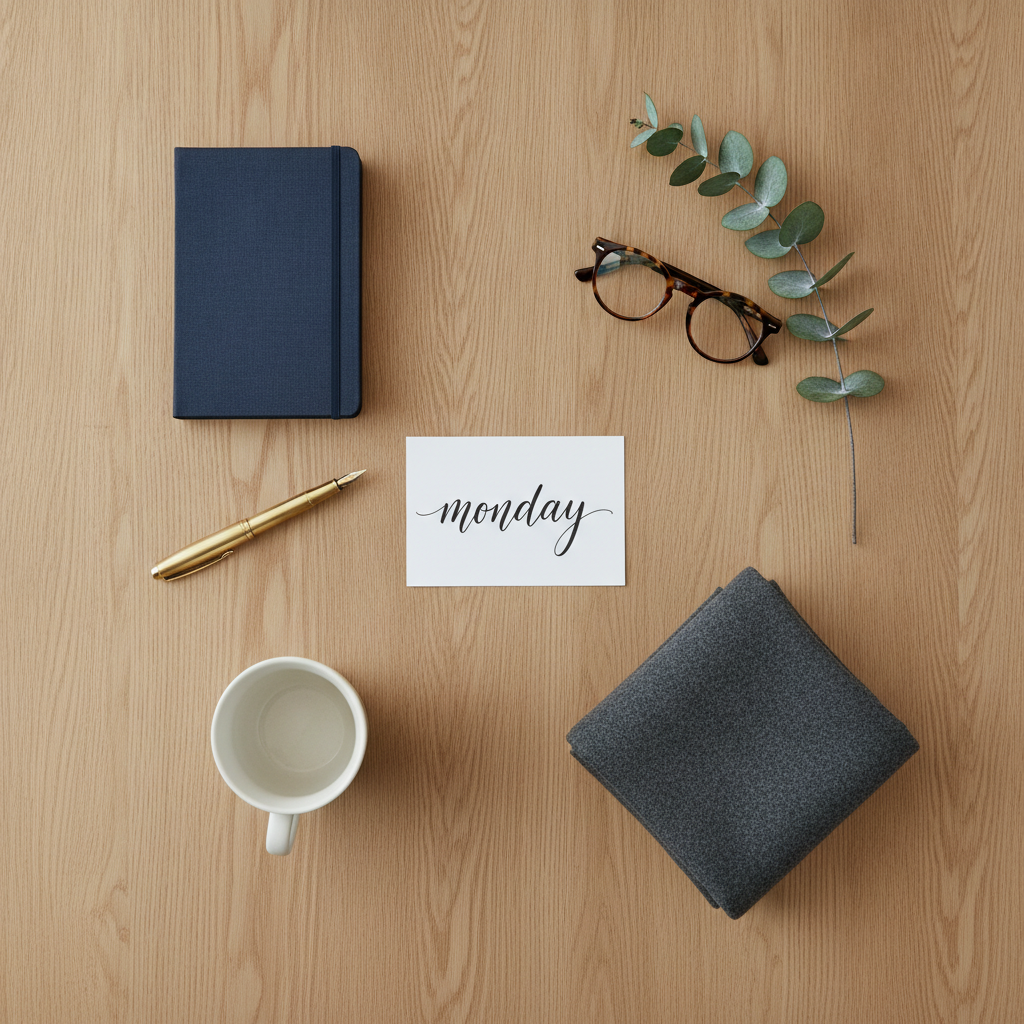
Six Asked For, Six Delivered, and the Cursive Is Correct
Counting is one of the more reliable failure modes in image generation, so this prompt named exactly six objects: notebook, fountain pen, glasses, mug, folded scarf and a eucalyptus sprig. Count them. All six are there, none repeated, and the handwritten card reads monday in clean lowercase script with no invented letters. The instruction it did drop was spacing. The brief asked for a loose ring with clear space between each object, and the glasses are lying across the eucalyptus stem. That is the pattern worth internalising: the big structural asks land, and a quiet qualifier at the end of the sentence goes missing.
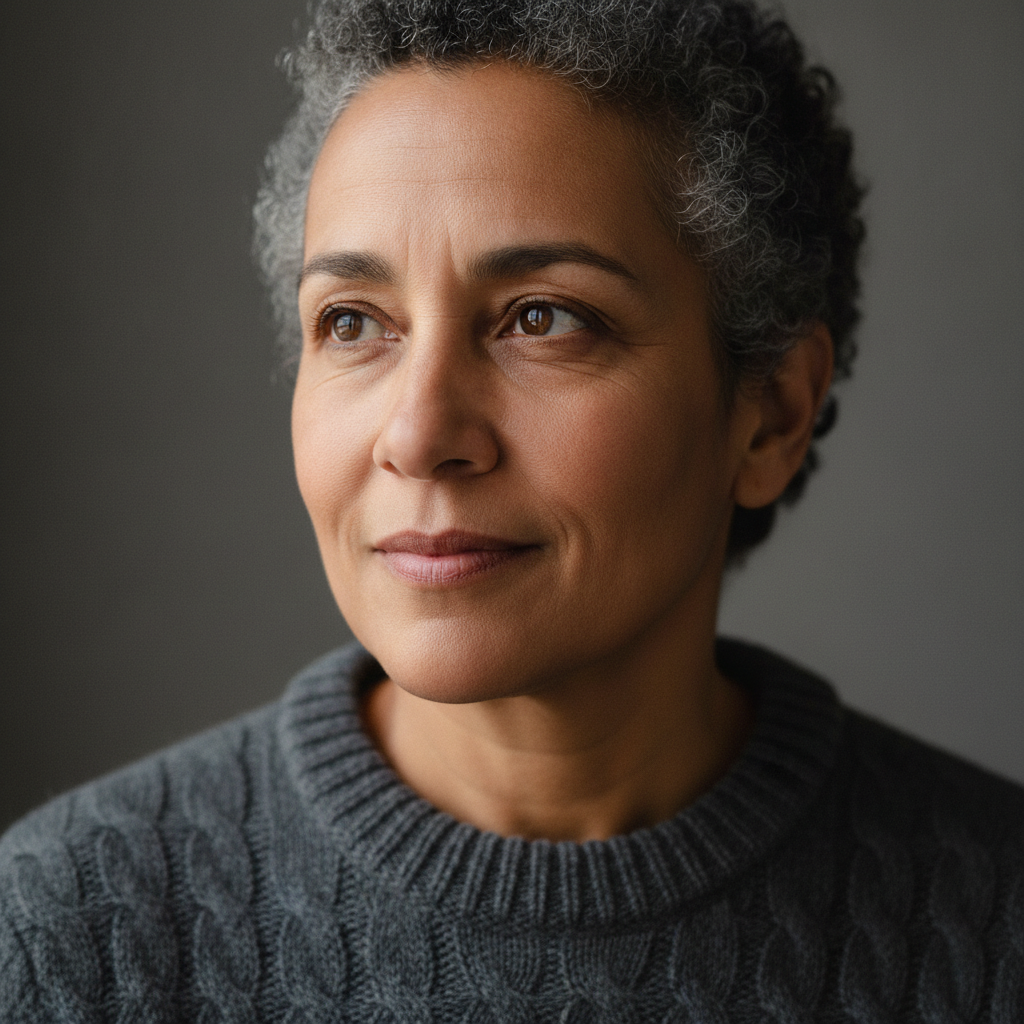
The Clean One
Every gallery needs the render with nothing wrong in it, and this is it. Fine skin texture rather than plastic smoothing, individual hairs at the temple, catchlights in both eyes, a cable knit whose stitches actually interlock, and a background blur that falls off the way a fast lens does. This is the honest answer to the quality question in the comparison below: at this kind of subject, GOT IMAGE 2 and Bing Image Creator are both good, and picking between them on raw photorealism alone would be splitting hairs. The differences that matter are the ones in the table — the account, the daily cap, and what happens when you want to edit something.
Every Competitor Claim on This Page Has a Shelf Life
Image generation moves faster than comparison pages do. The Bing Image Creator column above — the Microsoft account requirement, fifteen free fast creations a day, the model list, the five aspect ratios, the optional watermark, and the fact that edits to an uploaded image are handled by GPT-4o rather than by DALL-E 3 — is drawn from Microsoft’s own Image Creator help documentation and is accurate at the time of writing. It will not stay accurate forever. Microsoft has changed the boost economy, the underlying models and the editing behaviour more than once, and any page that states a competitor’s pricing or limits as permanent fact is lying to you by the time you read it. So treat the table as a starting point and verify the row you actually care about. If the deciding factor for you is the daily cap, go and read the current help page before you switch anything. If it is the sign-in, that one you can test in ten seconds by opening the tool in a private window. And run your own prompts through both. A comparison page can show you six renders; it cannot tell you which tool handles the specific thing you make every week.
Both Tools Re-Render. Neither One Adjusts.
This is the limitation that trips people up, and it is not specific to either product. Two images in the gallery were generated from prompts that begged for restraint: the same still life on both sides of a divider, identical except that the right half is a little crisper; and the same park bench photographed twice, identical except that the bicycle is gone. Both came back with a different jug and a different bench. The requested change happened in each case, and so did a dozen changes nobody asked for — stems leaning the other way, a window rail at a new height, different slats, a different tree canopy. The model does not hold the first image in mind and modify it. It reads the description and paints a new picture. The practical consequence is a change of habit. Generate four variants and choose, rather than expecting to nudge one render towards perfection. Put everything that must be stable into one image instead of spreading it across several. And when the thing you want changed lives in a photograph you already own, use the AI image editor or the AI background remover, which work on your file rather than replacing it.
How to Test It Against Bing Image Creator
Three steps, and the third one is the one most comparison pages skip
Pick a Preset, Then Describe It
Six presets cover the shapes in the gallery: poster with text, product shot, portrait, split comparison, before and after, flat lay. Add your own subject, wording and colours in the box underneath.
Generate Without Signing In
No Microsoft account, no email, no card. A render takes about fifteen seconds and comes back as a clean PNG at 1:1 with no watermark of any kind on it.
Check It Before You Ship It
Read the text letter by letter, count anything that was supposed to be a specific number, and confirm the small qualifiers landed. Then run the same prompt on Bing Image Creator and judge for yourself.
Three Prompts Worth Testing on Both
A fair test needs prompts that actually separate the two, and most do not — both tools will hand you a pretty landscape. Start with something carrying real text: a poster headline plus a subheading, spelled out in capitals in the prompt, then read the result letter by letter on both. Next, a prompt with an exact number in it, six objects or three racks, and count what comes back; the text to image page has more on writing those. Finally, a two-pass job: generate something, then ask for one change. That is the pass where the workflow differences show up, and where the AI photo editor and the AI image generator do different jobs. If your work is brand-shaped, run the same test on the AI logo generator and the AI flyer generator instead.
Why People Look for a Bing Image Creator Alternative
Almost never because of quality — nearly always because of access
No Account, No Sign-In Wall
The generator on this page runs without a Microsoft account, a Google account or any account at all. Send the link to someone and they are using it in one click, which is the single most common reason people look for a Bing Image Creator alternative.
No Daily Fast-Creation Cap
Bing Image Creator gives 15 free fast creations a day at the time of writing, then drops to standard speed. There is no fast-versus-slow split here, so an afternoon of iterating does not hit a cliff halfway through.
One Model for Generating and Editing
Microsoft states that uploads routed to editing are handled by GPT-4o rather than the model you picked. GOT IMAGE 2 uses GPT Image 2 for both, so refining a render does not hand it to a different system with a different look.
Text That Survives a Zoom
The poster in the gallery carries sixty-three correct characters and the coffee bag holds three lines of small label type legible at four times magnification. Both landed first try, and you can rerun either prompt above right now.
No Watermark by Default
Every render comes back clean. Bing Image Creator offers a watermark as an optional setting you can enable; here there is nothing to switch off, and the PNG drops straight into Figma, a slide or a page.
The Failures Shown, Not Hidden
Four of the six images above are in the gallery because something went wrong in them. That is the point: knowing that a generator re-renders instead of adjusting is worth more than another polished sample.
GOT IMAGE 2 vs Bing Image Creator FAQ
The account, the boosts, the editing model, and whether the quality gap is real
GOT IMAGE 2 vs Bing Image Creator — A Free Alternative Without the Microsoft Account
Most people who go looking for a Bing Image Creator alternative are not unhappy with the pictures. Bing Image Creator runs DALL-E 3 and, at the time of writing, Microsoft’s own MAI-Image-2.5-Flash, and both are genuinely strong models that will hand you a good image from a loose description. It costs nothing to use. It sits inside Copilot and Edge where a lot of people already are. Any comparison that opens by pretending otherwise is not worth reading. What sends people looking elsewhere is almost always the shape of the access rather than the output: the Microsoft account you have to sign into, the fifteen free fast creations that run out on the one afternoon you are actually iterating, and the way an upload you want to edit gets handed to a different model than the one you chose to generate with.
GOT IMAGE 2 answers those three specifically. There is no account, no email and no card in front of the generator on this page — it is the working product, not a teaser, and a link to it is a link someone can use immediately. There is no split between fast and standard generations, so there is no daily cliff to pace yourself against. And GPT Image 2 handles both generating and editing, so refining a render does not pass it to a second system with a different sense of colour and texture. Everything comes back as a clean PNG with no watermark at all, rather than a watermark you have the option of turning off. Paid plans start at $2.99 and exist for volume; for a handful of images, this is free in the same practical sense that Bing Image Creator is.
The six renders in the gallery are the argument, and four of them are there because something is wrong in them. The poster is the showcase: sixty-three characters of headline, subheading and footer, all correct, first attempt, holding up under a four-times crop — text inside the image is where this generation of tools separates itself from the last, and it is worth testing on both before you choose. The coffee bag repeats it at label size and passes, while quietly lighting itself from the wrong side. The flat lay gets the count right, six objects as asked, and ignores the request for clear space between them. And the two split-frame images demonstrate the limitation that matters more than any feature row: describe the same scene twice with one difference and you get two different scenes, because these models re-render rather than adjust. That is as true of Bing Image Creator as it is here, and knowing it changes how you work.
So the honest verdict is not that one tool beats the other. If you are already signed into a Microsoft account and make a few images a week, Bing Image Creator is an excellent free option and switching would gain you very little. If you have no Microsoft account or cannot sign into one, if you iterate hard enough to meet a daily fast-creation cap, or if you want one model across generating and editing, this is the better fit — and you can confirm that in about a minute without registering for anything. Start with the presets above, then carry the same brief across the rest of the site: the AI image generator for open-ended work, the text to image page for prompt craft, the AI image editor and AI photo editor for changes to a file you already have, the AI background remover for clean cutouts, the AI image cropper for reshaping a square render, and the AI event poster designer if the poster in the gallery is closer to what you actually came here to make.