AI Stream Overlay Generator
Twitch, YouTube & Kick Graphics in Seconds
Free AI stream overlay generator. Describe your channel and get a webcam frame, a scene background, a starting-soon screen, a lower third bar or a matching set of channel panels.
Try the AI Stream Overlay Generator — Free
Pick a style, describe your channel, and download the overlay in seconds
AI Stream Overlay Generator
Choose an overlay style and describe your channel — the mood, the palette, and where the webcam, chat and gameplay areas should sit
Tip: name the positions. “Webcam upper left, chat down the right, clear centre for gameplay” gets you a usable layout — “cool gaming overlay” gets you ornament exactly where your face needs to go.
AI Stream Overlay Examples
Six styles, from a neon gaming scene to the panels under your channel
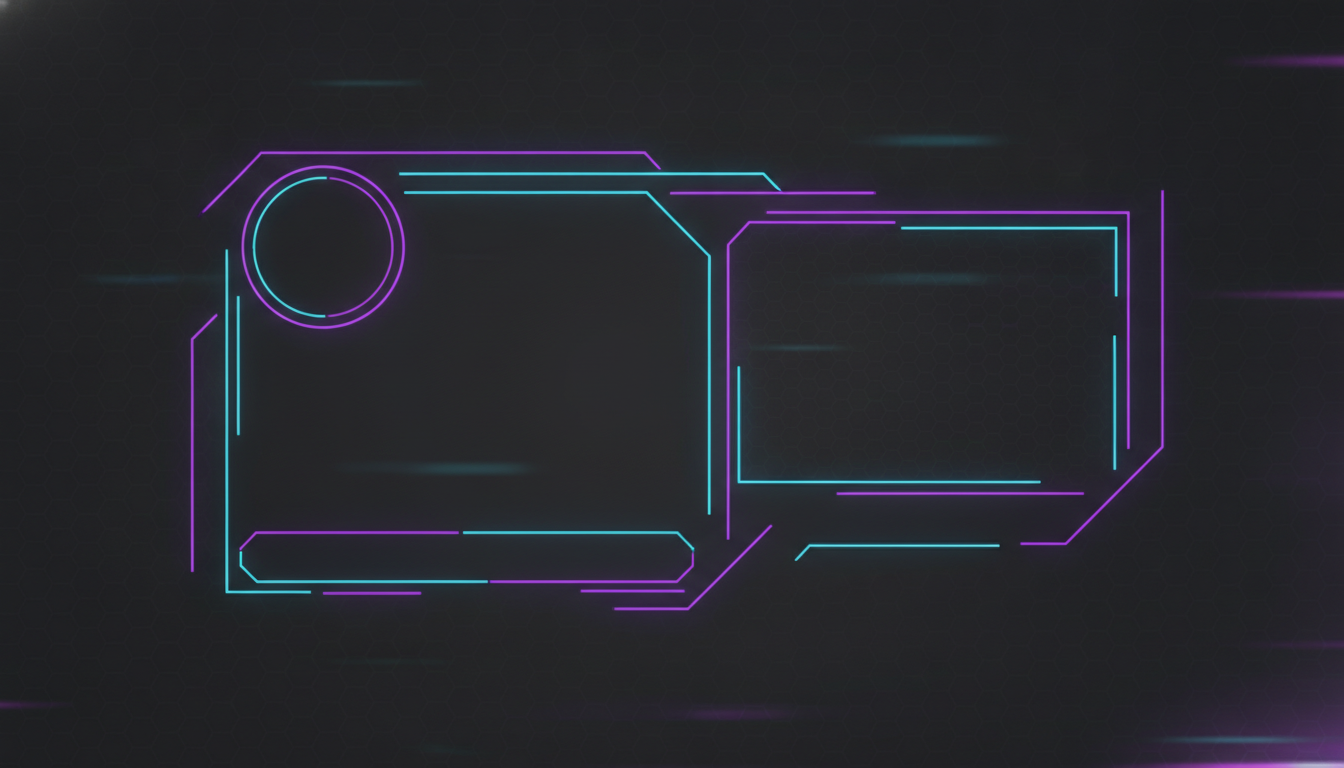
Neon Gaming
Made with GPT Image 2
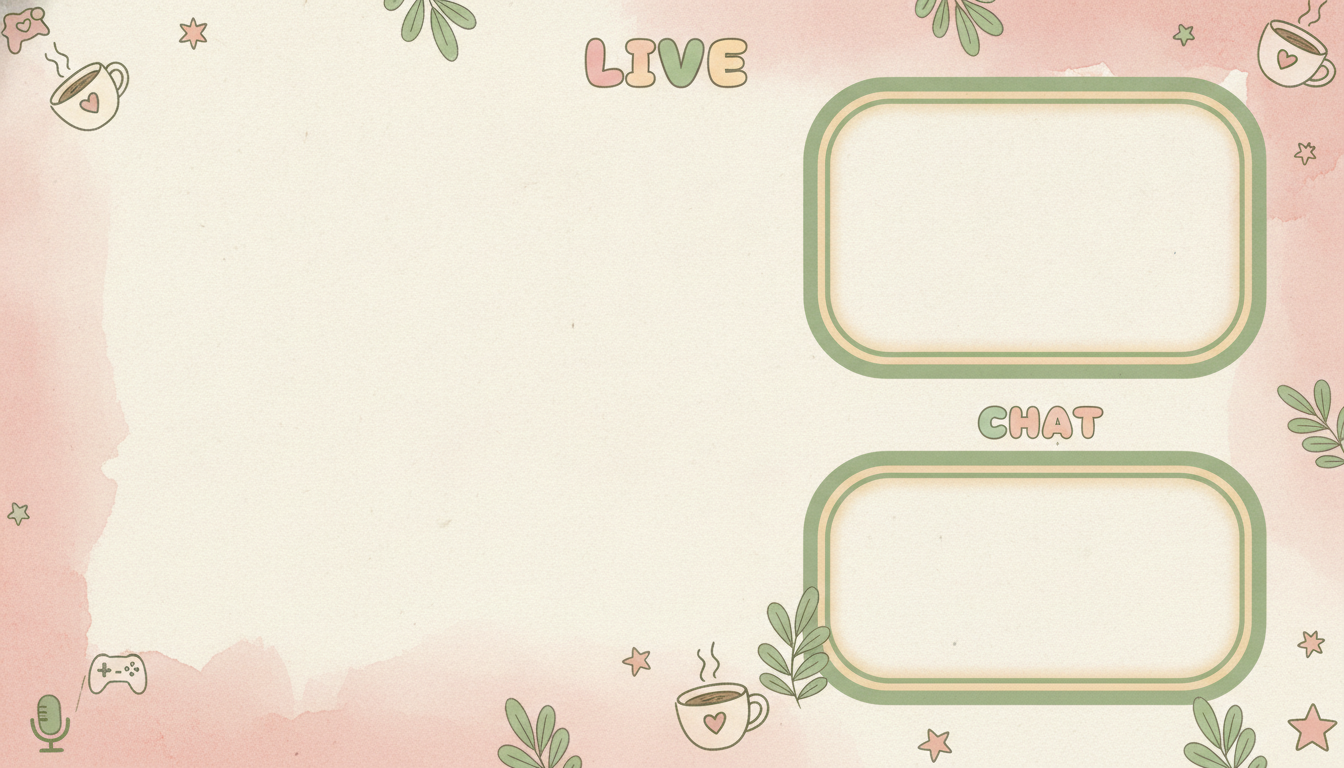
Cosy Pastel
Made with GPT Image 2
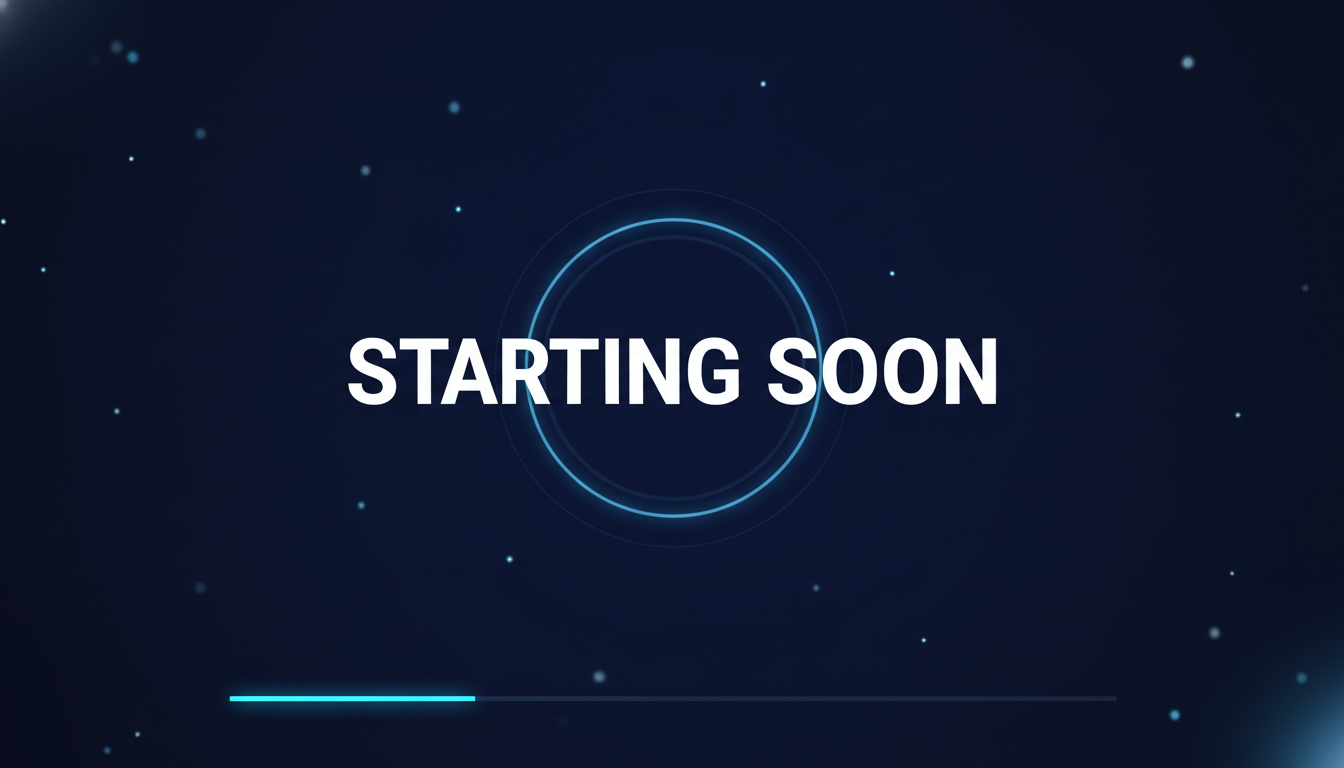
Starting Soon Screen
Made with GPT Image 2
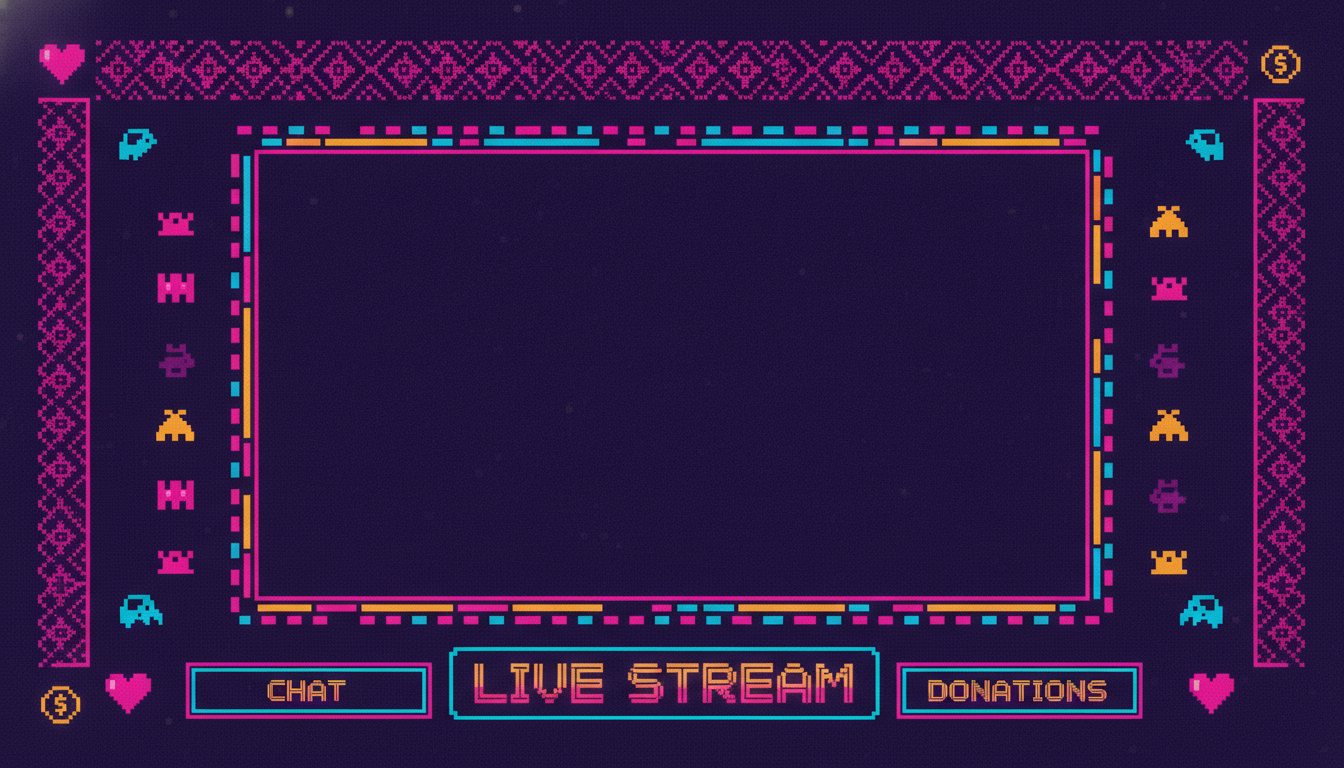
Retro Arcade
Made with GPT Image 2
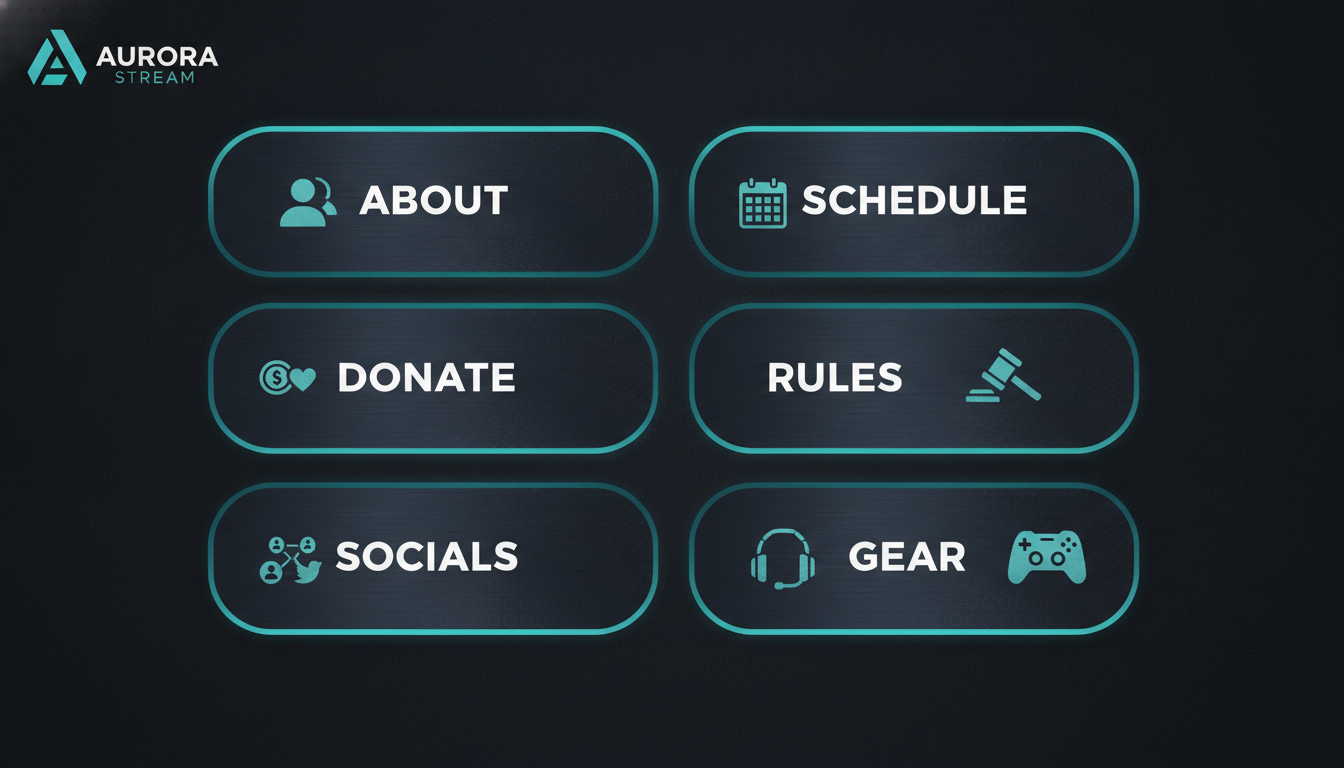
Channel Panel Set
Made with GPT Image 2
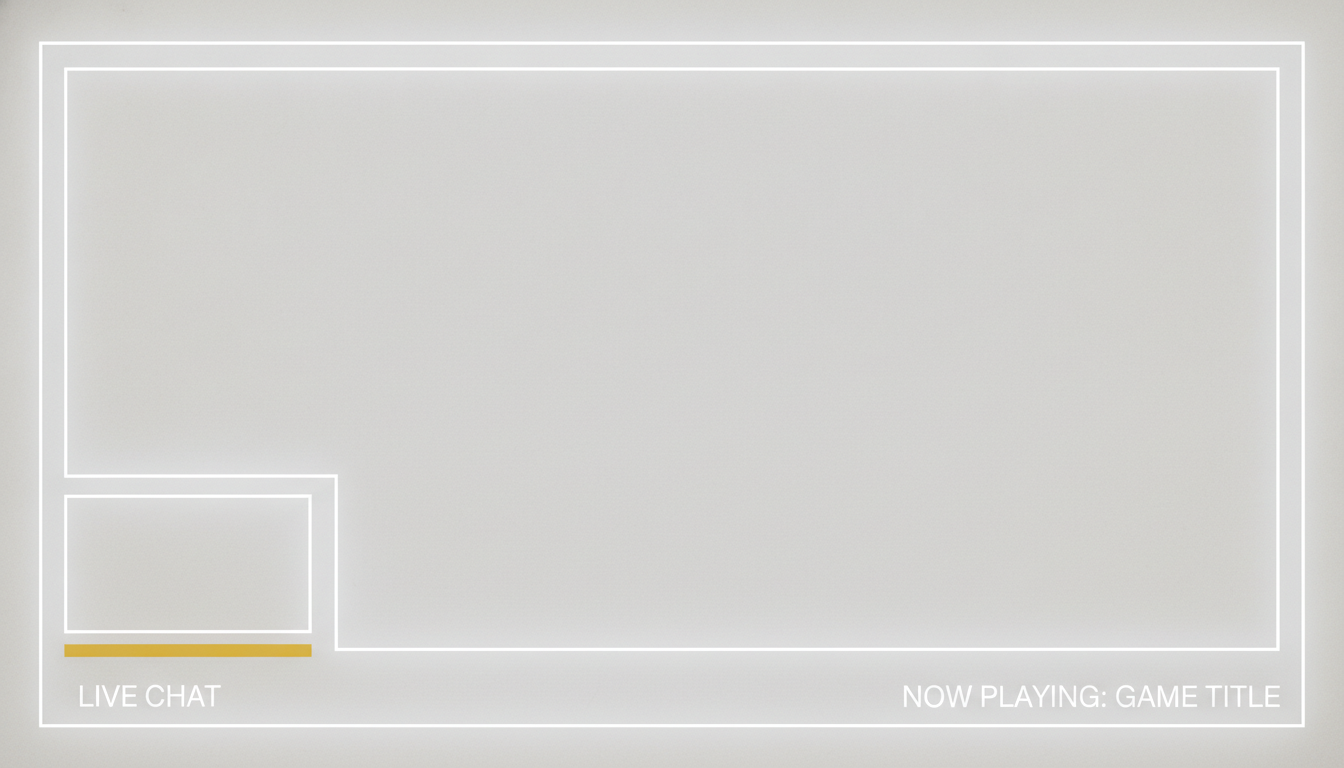
Minimal Pro
Made with GPT Image 2
What You Get Is a Flat Image, Not a Scene File
The download is a single flat PNG — no layers, no transparency mask, no animation and no OBS scene collection. Light streaks that look like they move in the render will sit perfectly still on stream, and the webcam does not snap into the frame by itself: you add the image as a source in OBS above your game capture, then position your webcam to line up with the region the overlay drew. Any lettering is artwork rather than real type, so read every word before you go live and consider adding your channel name and panel labels as real text in OBS or Canva instead. Export at 1920x1080 to match your canvas, and if you need true alpha or motion, treat the render as the visual direction and rebuild it in Figma, Photoshop or a motion tool.
How the AI Stream Overlay Generator Works
Describe the channel, pick a style, export at 1920x1080, drop it into OBS
Describe the Channel
Mood and palette first, then the layout: where the webcam sits, where chat goes, and that the centre stays clear for gameplay.
Pick a Style
Neon gaming, cosy pastel, starting-soon, retro arcade, panel set or minimal pro. Each sets the framing, texture and lighting.
Export & Add in OBS
Download at 1920x1080 with no watermark, add it as an Image Source above your game capture, then line the webcam up with the frame.
Why Use an AI Twitch Overlay Maker
Because the overlay is the only design a viewer looks at for four hours straight
Six Overlay Styles
Neon gaming, cosy pastel, starting-soon screen, retro arcade, channel panel set and minimal pro — picked by channel personality, not by game.
Safe-Area Aware
Say where the webcam, chat and gameplay regions go and the layout is built around them, so ornament never lands on top of your face.
Full Scene Coverage
Main scene frames, holding screens, lower third bars and a matching six-panel set, so the whole channel reads as one identity.
Any Palette, Any Mood
Neon purple and cyan, cream and sage, deep indigo and magenta, warm grey and mustard. Texture and lighting render too, not just flat colour.
Yours Commercially
No watermark on a graphic that sits on screen for your entire broadcast. Run it on a monetised channel or design overlays for clients.
Rebrand in an Evening
Switching game category or refreshing a channel used to mean a commission and a week of waiting. Try four directions before dinner instead.
Who Uses It
Anyone who has to look broadcast-ready before anyone is paying them to
New & Small Streamers
You have forty followers and no graphics budget, and a commissioned overlay costs more than the stream has ever earned. Generate a scene frame, a starting-soon screen and a panel set in one sitting and go live looking like a channel rather than a raw game capture.
Channels Rebranding
Moving from horror to cosy games, or from Just Chatting to a new category, means the neon overlay no longer fits. Try four directions in an evening, see them side by side, and switch the whole look before Friday instead of waiting a week on a commission.
Esports & Event Organisers
A community tournament needs a bracket holding screen, a between-match card and a lower third for casters, all matching, all by Saturday. Generate the set from one palette description so the broadcast holds together across every scene.
VTubers & Podcasters
Your model or your two-camera setup needs a scene that frames it without fighting it. The minimal and cosy layouts leave the centre open and keep the ornament at the edges, which is exactly what a talking-head stream wants.
AI Stream Overlay Generator FAQ
Platforms, resolutions, safe areas, layers and licensing
Free AI Stream Overlay Generator — Scene Frames, Holding Screens & Panels
The overlay is the strangest piece of design a streamer owns, because a viewer stares at it for four hours without ever consciously looking at it. It has to frame the gameplay without crowding it, hold your name and your socials without shouting, and make a channel with forty followers look like one worth following — and it has to do all of that before the channel earns anything that would justify commissioning it. That is the gap an AI stream overlay generator closes. Describe the mood, the palette and the layout, and you get a finished 16:9 scene in about fifteen seconds, which means the graphics stop being the reason you have not gone live yet.
The six styles map to channel personalities rather than to games. Neon gaming is the dark charcoal frame with purple and cyan edge glow, a webcam window and a chat outline — the default that suits shooters, roguelikes and anything fast. Cosy pastel is cream and blush with sage frames and hand-drawn plants, the look that has taken over cosy games, crafting and study-with-me streams. The starting-soon screen is a holding card rather than an overlay, and it is the single most useful graphic a new streamer can have, because it covers the five minutes before you actually start talking. Retro arcade brings pixel borders and scanlines for emulation and indie nights. The channel panel set gives you six matching About, Schedule, Donate, Rules, Socials and Gear blocks for the space under your player. And minimal pro is the quiet warm grey layout with thin white rules that suits podcasts, VTubers, tutorials and anything where a face is doing the work.
Prompting an overlay well is a layout problem before it is a style problem. Say where things go and the render obeys you: webcam upper left, chat down the right, clear rectangular gameplay area in the centre, a slim information bar along the bottom. Think in safe areas — the centre belongs to your game, the lower edge belongs to platform UI and alerts, and the corner where your facecam sits should stay free of ornament. Build to a 1920x1080 canvas so the file lands pixel-for-pixel in OBS with no scaling blur, and if you stream at a higher base resolution, upscale the download rather than stretching it. Two honest limits are worth knowing up front. The output is a flat PNG, so there is no transparency mask, no separate layers and no animation, however animated the light streaks look in the render. And any lettering is artwork rather than real type, so proofread every word and consider adding your channel name and panel labels as real text in OBS or Canva — which has the bonus that you can rename a panel later without regenerating anything.
An overlay is one piece of a channel identity, and the neighbouring tools cover the rest. Build the mark with the AI logo generator, fill the sub badge and chat slots with the AI Twitch emote generator, and set the header with the AI YouTube banner maker. Win the click with the AI thumbnail generator, match your handle everywhere with the AI profile picture maker and the AI avatar generator, and give a podcast feed its artwork with the AI podcast cover art generator. Announce a tournament or a schedule change with the AI poster maker or the AI event poster designer, generate a scene backdrop with the AI wallpaper generator, lift your channel name with the AI typography generator, cut a subject out cleanly with the AI background remover, keep the clips posting with the AI social media content creator, and push any of it to a higher resolution with the AI image upscaler. Scroll back up and make your first overlay free.