Try the AI Photo Unblur Tool — Free
Upload the blurry shot, choose the kind of blur you are fighting, and download the sharpened version in seconds
AI Photo Unblur
Upload a blurry photo and pick the type of blur to fix
Upload the largest original file you have — not a screenshot or a messaging-app copy. Mild shake, missed focus and soft low-light shots recover best; a photo blurred beyond recognition will be reconstructed rather than restored
Heads up: mild blur is genuinely recovered, but heavy blur is reconstructed — fine text, digits and facial features can be invented convincingly. Never treat an unblurred photo as forensic or evidential.
AI Photo Unblur Examples
The kinds of blur people bring to an unblur image AI tool
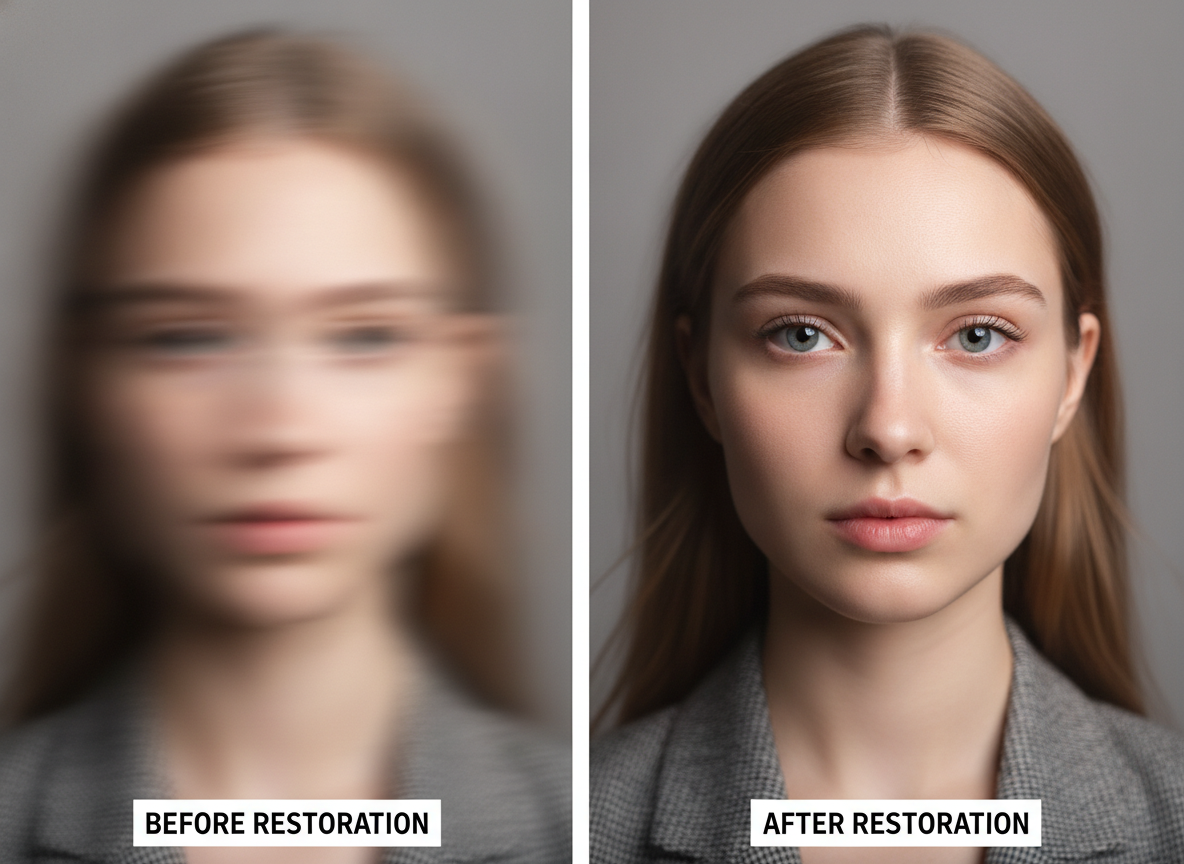
Before & After
Made with GPT Image 2
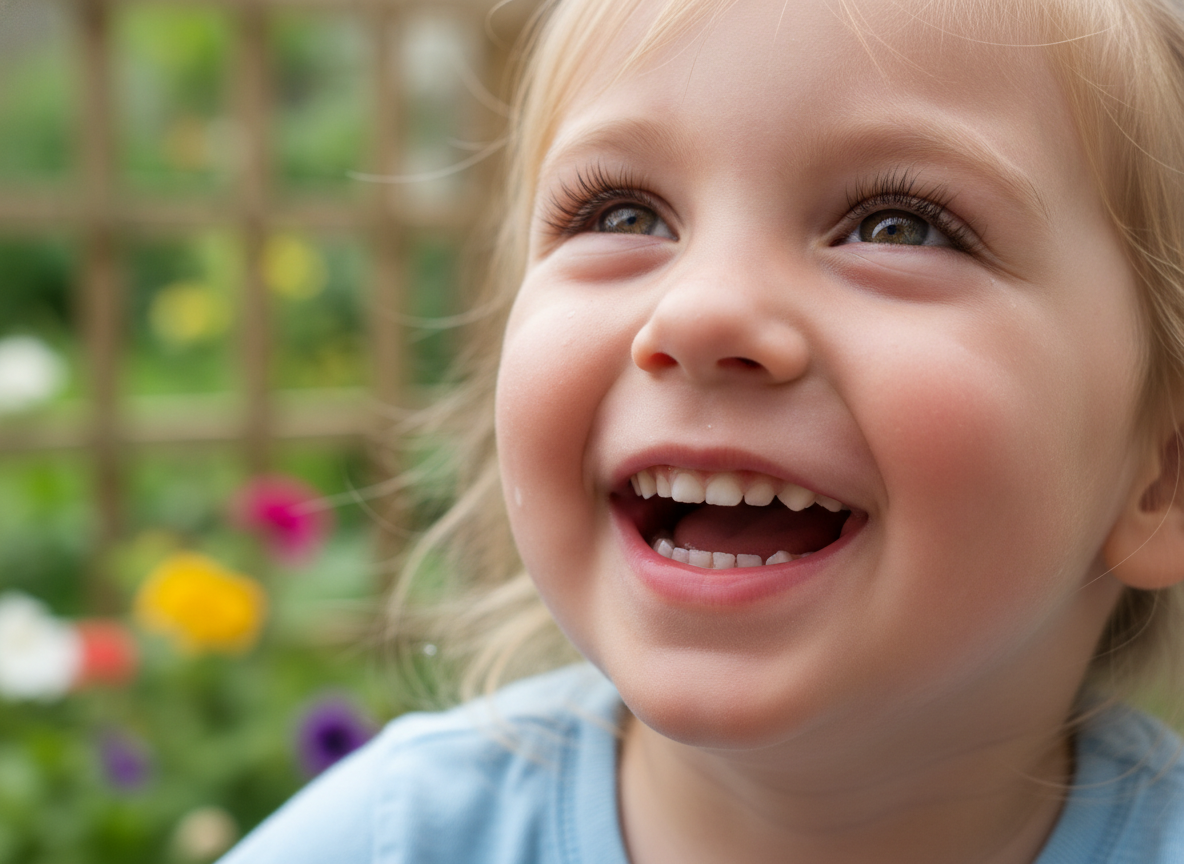
Rescued Family Shot
Made with GPT Image 2
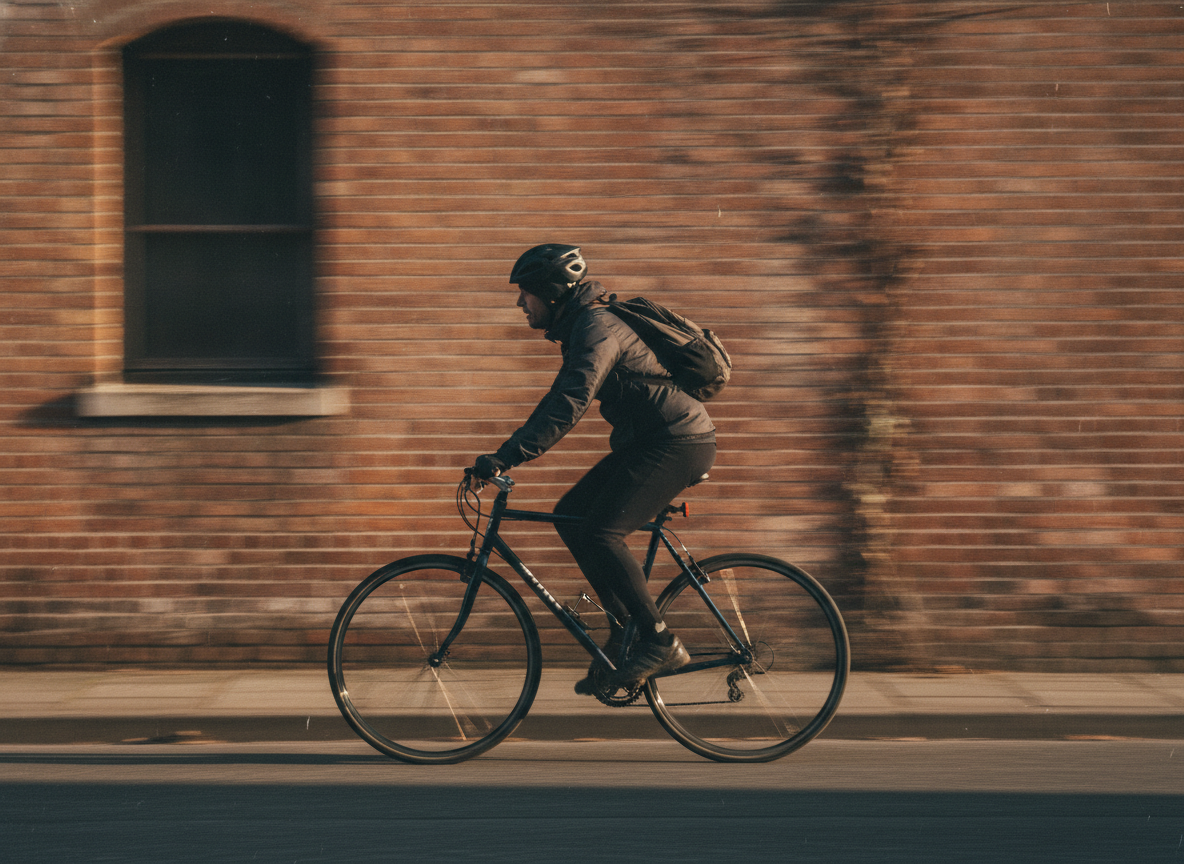
Motion Blur Fixed
Made with GPT Image 2
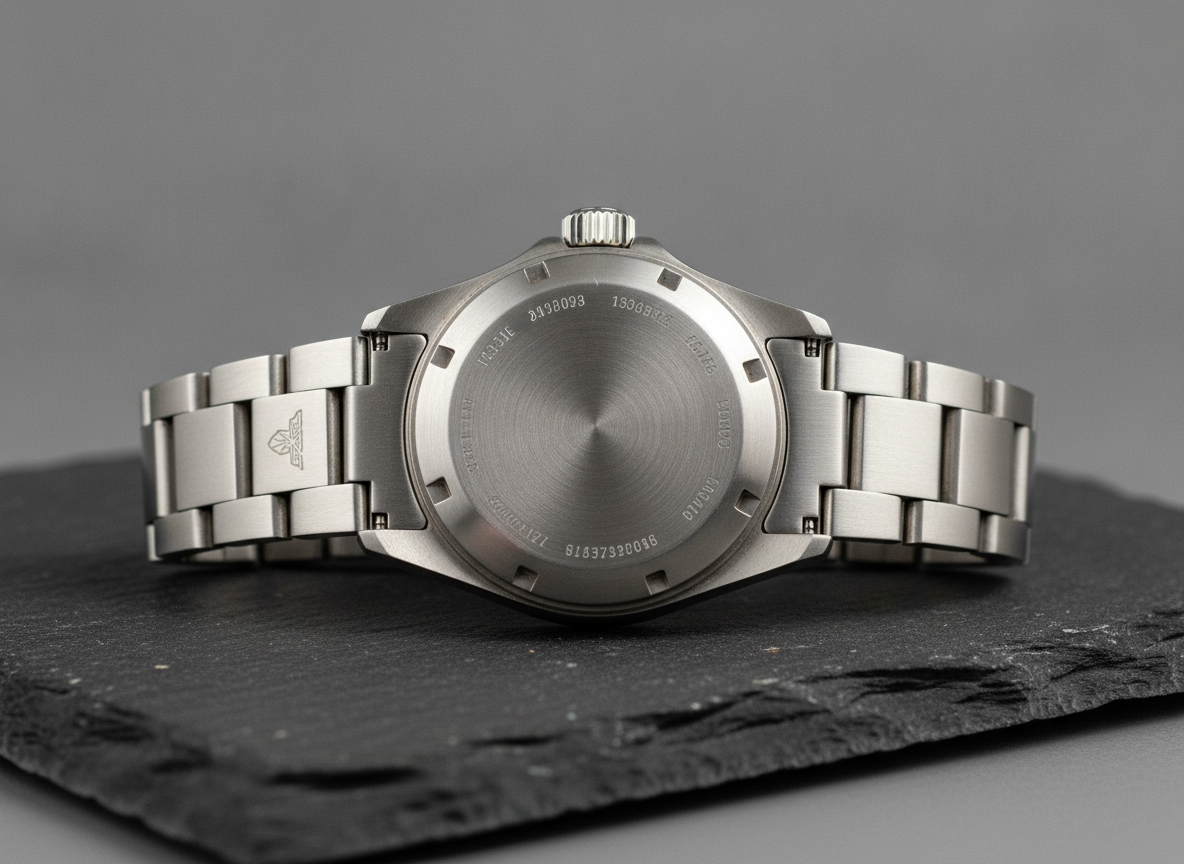
Product Photo Recovered
Made with GPT Image 2
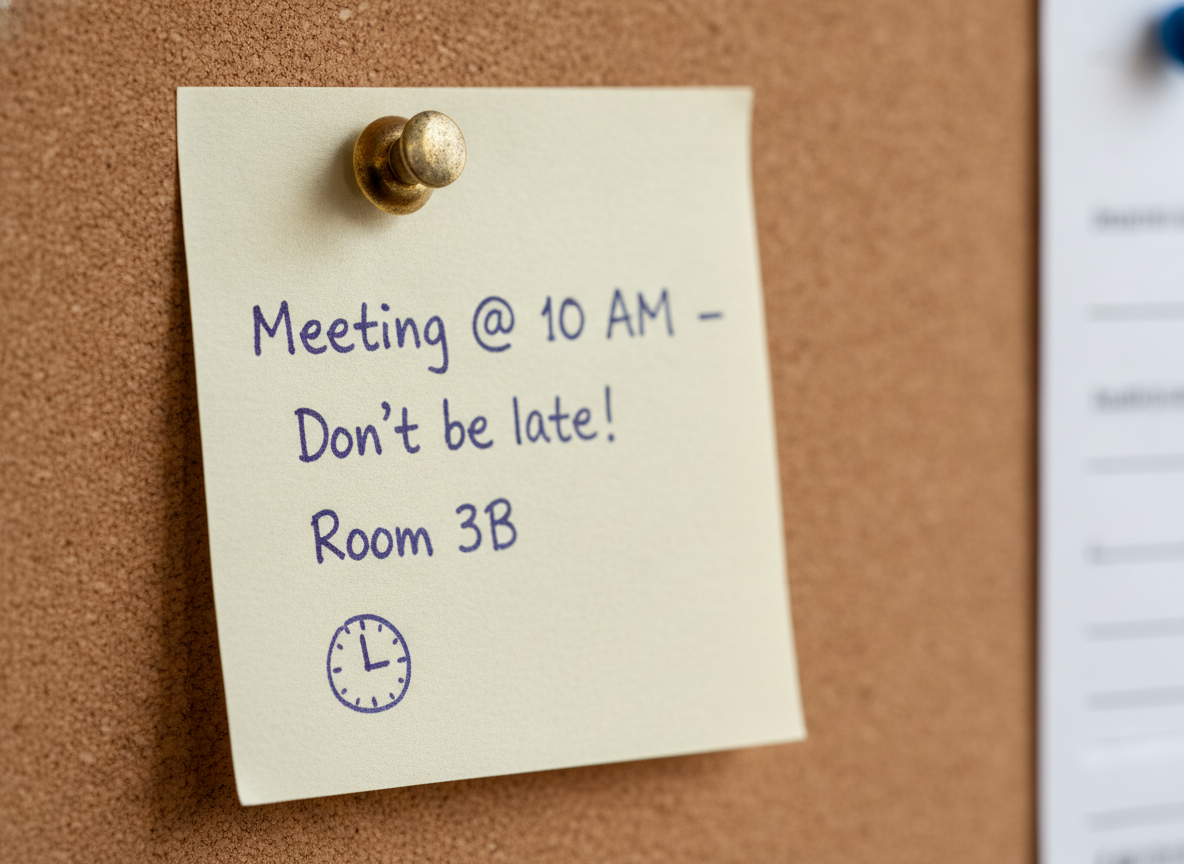
Text Made Legible
Made with GPT Image 2
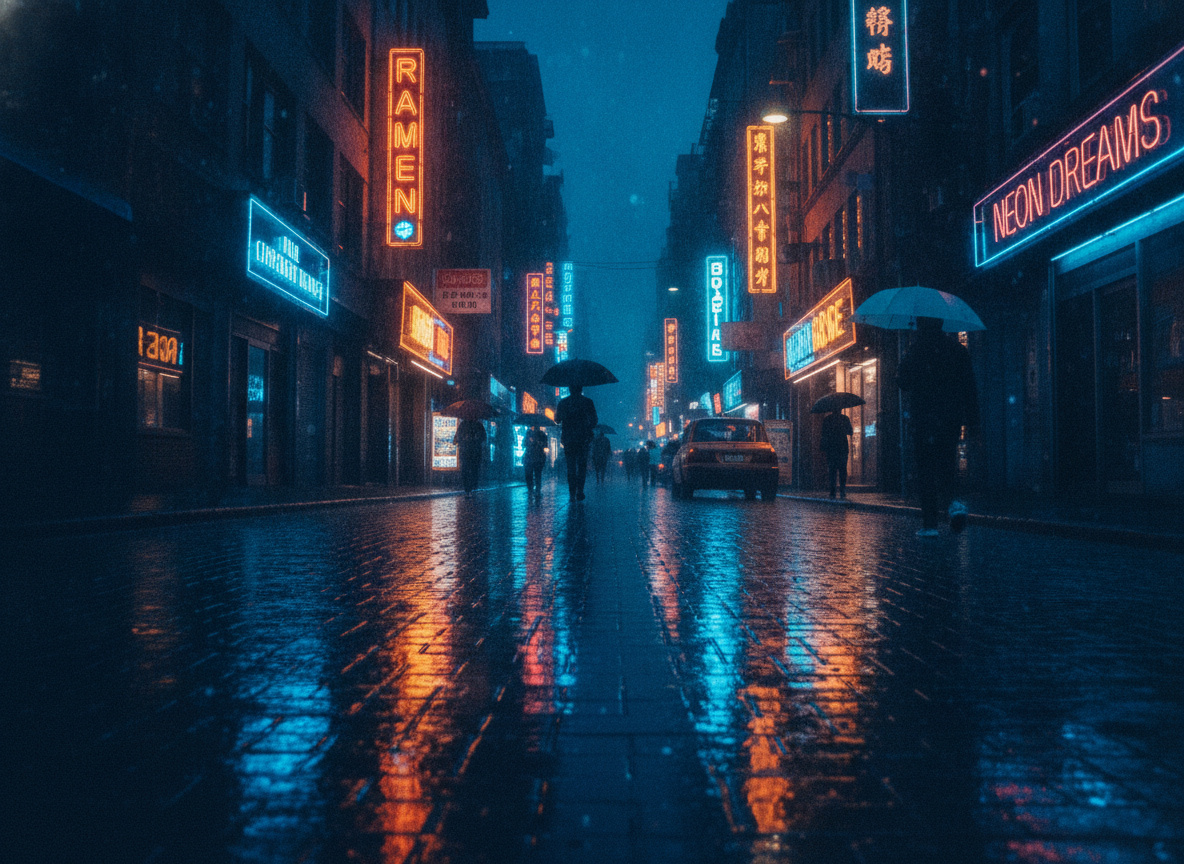
Low-Light Cleanup
Made with GPT Image 2
Recovered or Reconstructed? Read This First
Mild blur still has your detail hiding inside the file, and the model largely recovers it. Heavy blur does not: once a feature is smeared into a flat gradient the information is gone, and what comes back is a plausible reconstruction — fine text, digits, licence plates and facial features can be invented convincingly and seamlessly. So use the result to look at, share and print, and never as forensic, evidential or identifying material: not for legal proceedings, insurance claims, police reports, medical review or identity verification.
How the AI Photo Unblur Tool Works
Upload, pick the blur type, download the sharp version
Upload the Blurry Photo
Use the largest version you have — the original file, not a screenshot or a messaging-app copy. More pixels means more for the model to work with.
Pick the Blur Type
Motion blur, soft focus, low-light smear, text rescue, portrait detail or an all-round sharpen. Each preset targets a different failure.
Compare & Download
Check the result against the original — especially faces and text — then download it clean, with no watermark.
Why Use an AI Photo Unblur Tool
Because sharpening sliders have never once saved a shaky photo
Built for Blur
Camera shake, motion smear and missed focus specifically — not a generic filter that raises contrast and calls it sharp.
Real Detail, Not Halos
Rebuilds edges, pores, fabric weave and hair strands instead of ringing them with the white outlines classic sharpening leaves behind.
Upload and Go
Drop in a JPG or PNG, pick what kind of blur you are fighting, download the fix. No sliders, no masks, no learning curve.
Honest About Limits
Heavy blur is reconstructed, not recovered. We say so on the page, not in the footer, so you know what you are holding.
Yours Commercially
No watermark, no attribution. Use the results in listings, decks and client work.
Seconds Per Photo
Fast enough to work through a whole shoot instead of picking the one shot worth an hour in a desktop editor.
Who Uses It
Mostly people holding one photo they cannot take again
The One Irreplaceable Shot
The speech, the first steps, the goal — a single frame, taken one-handed, and the moment is never coming back. This is what the tool is for: pulling something worth keeping out of a photo you would otherwise delete.
Parents & Pet Owners
Children and dogs do not hold still, and phone cameras hunt for focus at exactly the wrong second. Rescue the blurry ones from the camera roll instead of trying to restage a moment that was never going to repeat.
Sellers & Small Shops
A soft product photo costs you clicks. Sharpen the shot you already have rather than rebuilding the whole set-up — just make sure the reconstructed detail still honestly represents what the buyer is getting.
Archivists & Screenshotters
Old scans, photos of whiteboards, a note snapped in a hurry. The text rescue preset clarifies characters that are still faintly there — but if the writing has smeared away entirely, read the reconstruction with suspicion.
AI Photo Unblur FAQ
What it fixes, what it invents, and where it stops
Free AI Photo Unblur — Making a Blurry Picture Clear Again
Blur is the one photographic mistake you cannot shrug off. Bad exposure can be lifted, a wonky horizon can be rotated, ugly colour can be graded — but a smeared frame has historically been a dead frame, and the standard advice was to take it again. That advice is useless in exactly the situations that matter: the speech, the first steps, the winning goal, the one street shot you will never line up twice. An AI photo unblur tool exists for those files. Rather than pushing local contrast around the way a sharpening slider does, it reasons about what the scene most plausibly looked like before the blur happened and rebuilds the edge structure and micro-texture that the smear destroyed — eyelashes, hair strands, fabric weave, brick, printed characters. That is why the result reads as a photograph instead of a crunchier version of a mushy one, and why classic sharpening’s telltale white halos are absent.
The six presets exist because “blurry” describes at least four unrelated failures. Motion blur is directional: the camera or the subject moved during the exposure, and the fix is to reverse the smear along its axis so a moving subject snaps into a frozen, high-shutter-speed look. Missed focus is uniform softness on the subject while the rest of the frame may be fine, so the soft focus preset targets the subject and deliberately leaves genuine background bokeh alone — the photo should still look photographed, not flattened. Low-light shots arrive with blur and heavy sensor noise together, which is why cleaning either one alone tends to make the other worse; the low-light preset handles them jointly and keeps the night mood instead of brightening the scene into daylight. Portrait detail concentrates everything on eyes, lashes, lips, hair and skin texture while explicitly refusing to beauty-filter, because a “fixed” face with plastic skin is its own kind of ruined. And text rescue evens out softness across a page so characters regain clean ink edges and readable stroke weight.
Two habits get you the most out of it. First, feed it the biggest file you own. The original from the camera roll carries far more recoverable signal than a screenshot of it, a messaging-app copy, or a crop someone sent you — every one of those has already thrown away detail the model would otherwise have used. Second, be clear-eyed about which half of the process you are in, because it changes what the output is for. On mild blur the detail is still faintly encoded in the pixels and you are genuinely recovering your own photograph. On heavy blur that information no longer exists, and what returns is the model’s best plausible guess — rendered seamlessly, confidently, and with no visible marker separating the invented parts from the real ones. Fine text can come back with different words, digits can shift, a licence plate can be fabricated, and a face can drift far enough that it is no longer reliably the same person. So share it, print it, frame it, post it — but never submit an unblurred image as forensic, evidential or identifying material, and check any recovered face against a second photo before you trust it.
Pick the right neighbour if blur is not actually your problem. A small but sharp image needs more pixels, not more clarity — that is the AI image upscaler. A photo that is basically fine and just needs a lift is a job for the AI image enhancement tool. Scratched, creased and faded old prints belong in AI photo restoration, and black-and-white originals can be brought to life with the AI photo colorizer. Once the shot is sharp, keep going: refine faces with the AI digital portrait enhancer, clean up listing shots with AI product image enhancement, take out a distraction with the AI object remover, cut the subject out with the AI background remover, widen a tight crop using the AI image extender, or make any other change in plain English with the AI photo editor. Scroll back up and unblur your first photo free.